Selecting Results for a Report in Worksoft Reporting Services
To create a report with Certify results, you must connect to a Certify database and select the results in Worksoft Reporting Services.
A Certify database must have been added to the Worksoft Portal to connect Certify results in Reporting Services. For more information, see Adding Certify Databases to the Worksoft Portal. If you have only one Certify database or Certify project, it will be prepopulated in their respective fields.
To select results for a report:
-
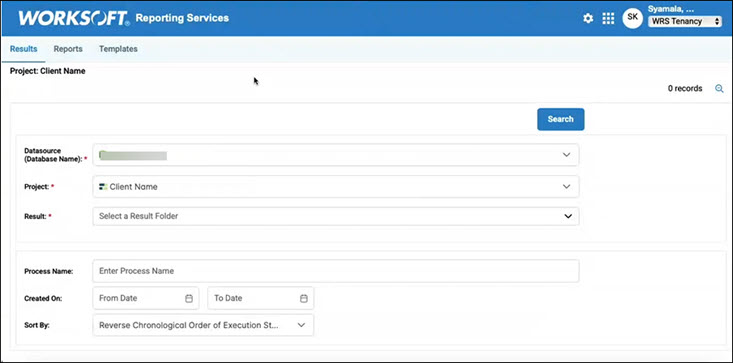
Click the Results tab in Reporting Services.
The Results tab opens.
-
In the Datasource field, enter the Certify database name.
-
In the Project field, enter the name of the project where your Certify results reside.
-
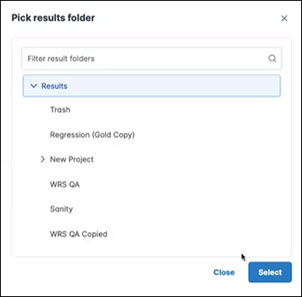
Click in the Result field.
The Pick Results Folder dialog opens.
-
Select the result in which you want to generate a report.
-
Click Select.
The folder name appears in the Result field.
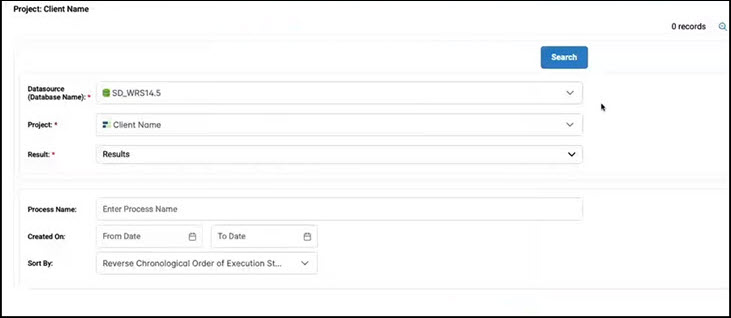
- If needed, you can specify the following options to help find the desired result:
- Process Name
- Created On
- Sort By
-
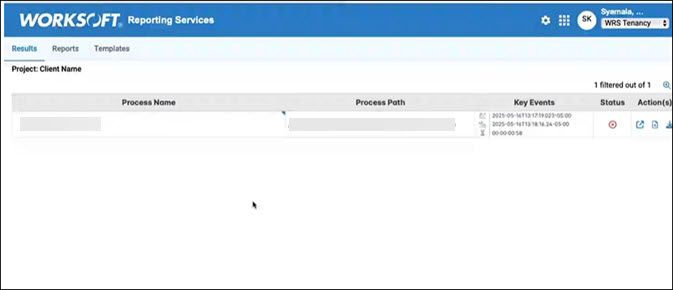
Click Search.
The Results appear in the Results tab.
-
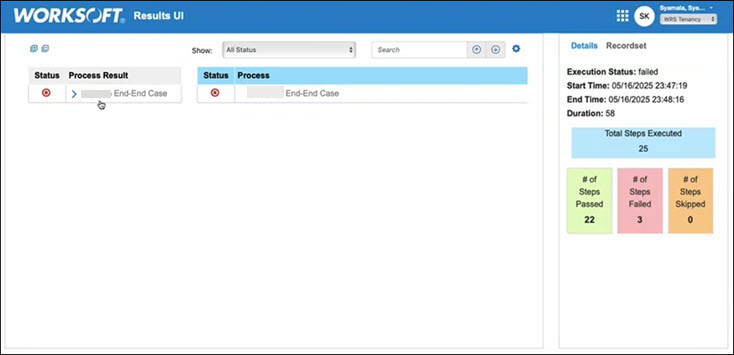
If you want to view the results, click the View Result button next to the result you want to view.
The Worksoft Results UI opens.
-
After you review the results, close Worksoft Results UI.
You are now ready to generate a report. For more information, see Generating Reports in Worksoft Reporting Services.
 Related Topics