Managing Email Providers for the Email Interface
Certify administrators can add, edit, and delete email providers for the Email interface in the Email Configuration tool. They can configure providers that use basic authentication or OAuth 2.0 authentication for Microsoft 365 email accounts. Adding providers simplifies and reduces the steps needed when creating an Email interface process.
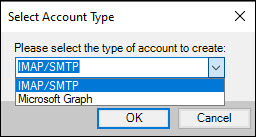
You must select one of the following account types:
- IMAP/SMTP
- Microsoft Graph
Users without administrator rights can only view configuration and accounts.
To add a new email provider with the IMAP/SMTP account type:
-
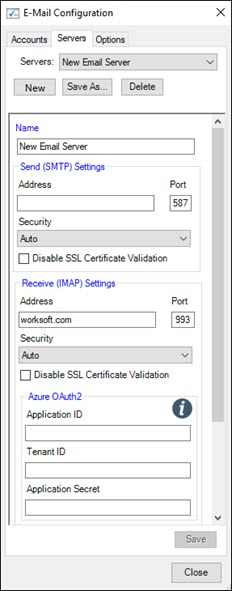
From the Certify menu, select Configure > Interfaces > Email.
The Email Configuration tool opens.
-
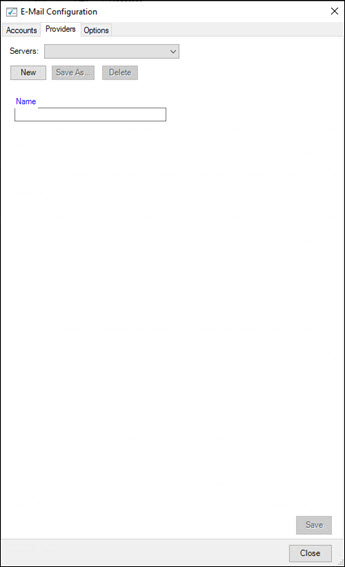
Click the Providers tab.
The Providers tab opens.
-
In the Name field, enter a unique server name.
-
Click New to add a new email provider.
The Select Account Type dialog opens.
- From the drop-down list, select IMAP/SMTP.
-
Click OK.
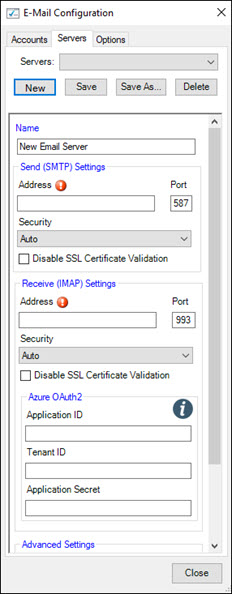
The New Provider screen opens.
-
In the Send (SMTP) Settings Address field, enter an IMAP or SMTP address to use with the Send action.
If you have any questions, ask your IT administrator.
-
In the Security field, keep the Auto default value and do not select the Disable SSL Certificate Validation option unless your IT administrator makes an exception.
-
In the Receive IMAP Settings Address field, enter an IMAP or SMTP address to use with the Receive action.
If you have any questions, ask your IT administrator.
-
In the Security field, keep the Auto default value and do not select the Disable SSL Certificate Validation option unless your IT administrator makes an exception.
- If using Microsoft 365 email addresses that require OAuth 2.0 authentication, enter the following information in the Azure OAuth2 section:
- Application ID
- Tenant ID
-
Application Secret
For more information, contact your IT administrator and read Configuring Microsoft 365 to Enable OAuth for the Email Interface.
- From the Use For drop-down list, select one of the following options:
- IMAP only
- None
- IMAP & SMTP
-
In the Advanced Settings field, enter host server names where the SSL Certificate name and the host name do not match. Enter server names in a comma-delimited list.
-
Click Save to save the provider.
To add a new email provider with the Microsoft Graph account type:
The Microsoft Graph account type only supports Microsoft Entra and Microsoft 365 accounts.
-
From the Certify menu, select Configure > Interfaces > Email.
The Email Configuration tool opens.
-
Click the Providers tab.
The Providers tab opens.
-
In the Name field, enter a unique server name.
-
Click New to add a new email provider.
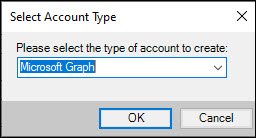
The Select Account Type dialog opens.
- From the drop-down list, select Microsoft Graph.
-
Click OK.
The New Provider screen opens.
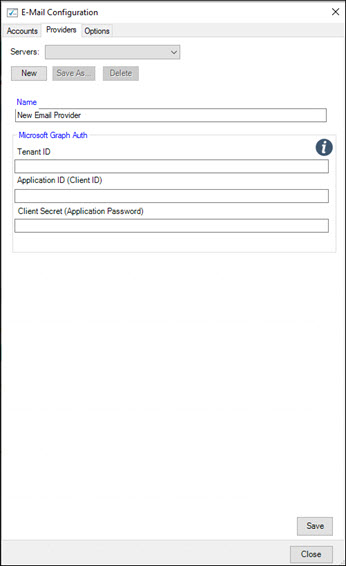
- Enter the following information in the Microsoft Graph Auth section:
- Tenant ID
- Application ID (Client ID)
-
Client Secret (Application Password)
For more information, contact your IT administrator.
-
Click Save to save the provider.
To copy an email servere:
-
In the Email Configuration tool, click the Providers tab.
The Providers tab opens.
-
From the Servers drop-down list, select the server you want to copy.
-
Click Save As.
The Save As dialog opens.
-
In the Server Name field, enter a unique server name.
-
Click OK.
The new server is saved.
 Related Topics