Reviewing Variants in the Variants Panel
The Process Intelligence Variants panel allows you to view all of your variants in one place with the variant numbers. The variant number is a system generated ID, but it does not convey any meaningful information to the user.
To review variants in the Variants panel:
-
On the Process Intelligence dashboard, click a department on the right side of the screen.
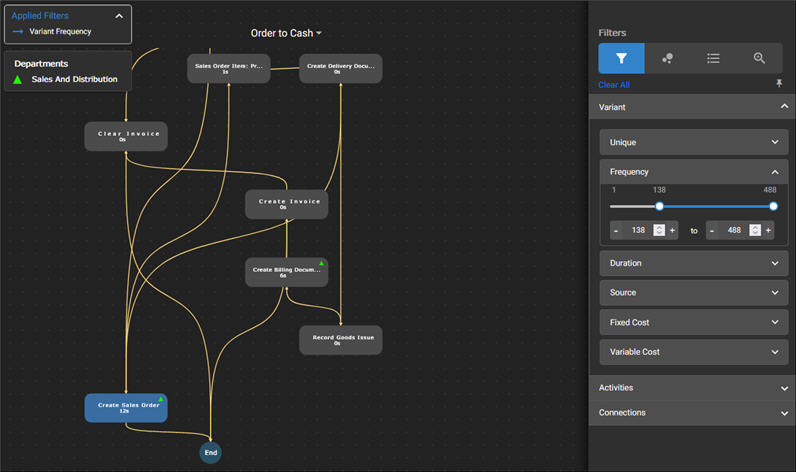
The Business Process Visualization screen opens with the most common variant shown at the highest frequency. If needed, filter variants before you highlight them. For more information, see Filtering Variants.
-
Click the Variants
 tab.
tab.The Variants Panel appears, and you can review the variants.
Data Summary Grid
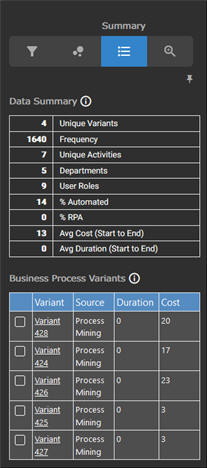
The Data Summary table displays the following statistics for the current filtered data set:
Component
Description
Unique Variants
Unique start to end sequences of activities
Frequency
Total number of start-to-end sequence occurrences
Unique Activities
Total number of unique activities
Departments
Total number of unique departments
User Roles
Total number of unique user roles
% Automated
Total percentage of automated activities
% RPA
Total percentage of RPA activities
Avg Cost (Start to End)
Total cost of all activities from start to end
Number does not include frequency.
Avg Duration (Start to End)
Average sum of activity time divided by the number of unique variants
- Activity Name
- Duration
- Cost
Business Process Variants
The Business Process Variants table displays a list of the variants contained within the currently filtered data set. You can view the following information:
|
Component |
Description |
|
Source |
Data source for the variant |
|
Duration |
Duration of the variant from start to end |
|
Cost |
Activity cost of the variant from start to end |
Reviewing Variant Details
In the Business Process Variants table, click on a variant to open the Variant Summary panel. In the Activities Within This Variant section, the total number of different versions of the same activity is listed across all business processes.
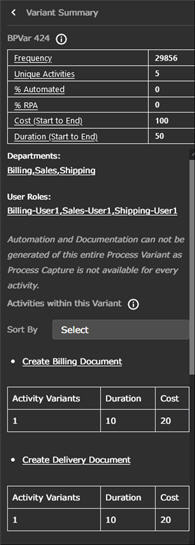
From the Sort By drop-down list, select one of the following options:
When you are done reviewing the variant, click the Close  button to return to the Variants panel.
 Related Topics