Retrieve Certify Step Results with Certify Results API Swagger
With the Certify Results API Swagger, you can retrieve the Certify step results using the third GET method of ProjectV1. This GET method retrieves failed and/or aborted steps for a specified project.
To retrieve Certify step results:
Before you open Certify Results API Swagger, you must open Certify Results API to get your token and query ID.
-
Open Certify Results API on your application server with the following URL address:
http://<servername>/CertifyResultsAPI
-
Using your Worksoft Portal credentials, enter your credentials and click Login.
Certify Results API opens.
-
Click the Manage Tokens tab.
- Click the Copy Token to Clipboard
 button next to the token you want to use in Swagger.
-
Open Certify Results API Swagger through the following URL address:
http://<servername>/CertifyResultsAPI/swagger/ui/index
- In the api_key field, paste the token you copied.
- Click Explore.
-
Expand ProjectV1 and click the third GET method to expand the operations.
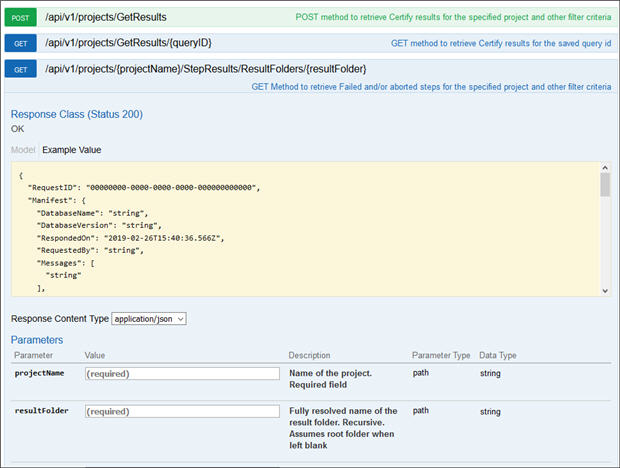
- In the Parameters section, enter your project name in the projectName field.
- In the Parameters section, enter your result folder name in the resultFolder field.
- If you want to filter your results, you can add the following parameters to your request:
- Status
- Date
- Start date
- End date
- Attribute name
- Attribute value
- In the includeobjects drop-down list, select True or False to include Certify object information.
- If you want to pull results from a specific execution, enter values in the logHeaderID field.
- If you want to pull results from a specific process or execution, enter values in the logProcessID field.
-
In the Response Messages section, click the Try it out! button to test the query.
The step results are created.
- Open the results in a reporting tool to visualize them.
 Related Topics