Syncing CTM Results in Worksoft Impact
In Worksoft Impact, you can configure and schedule synchronization of Continuous Testing Manager (CTM) execution results for the current tenant.
You need a valid user token to use this feature and need to be a Tenant Admin or superuser.
To sync CTM results:
- From the Worksoft Impact dashboard, open the Settings page in one of the following ways:
- Click the Settings
 button at the top of the dashboard.
 -
Click the User button and select Settings from the drop-down menu.
-
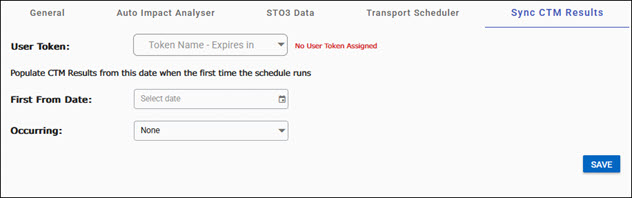
Click the Sync CTM Results tab.
The Sync CTM Results tab opens.
-
From the User Token drop-down list, select a user token.
The listed user tokens are based on the users you configured in the Worksoft Portal.
-
To configure the scheduler, enter the following information:
Option
Description
First From Date
Select the start date for the first scheduled run.
Occurring
From the drop-down list, select one of the following scheduling options:
- None
- Daily
- Weekly
-
Monthly
The option you select determines which information you need to configure.
Scheduling Start Date
Select the day when the schedule should begin.
On
If you selected the Weekly option, select a day of the week to start the sync.
On Day
If you selected the Monthly option, select a specific day of the month to start the sync.
Recurrence
Select the repeat interval between runs.
At
From the drop-down list, select the execution time.
-
Click Save to save your configuration.
 Related Topics