D
Configuring Global XF Data for the UIA Interface
The Certify UIA interface uses Certify Extensibility Framework (XF) definitions to correctly recognize and access all objects, such as text boxes, combo boxes, trees, buttons, and data grids. The Certify XF definitions are a set of object recognition properties and object relationship definitions that specify how Certify recognizes, locates, and interacts with complex UI objects in Windows applications.
You use XF definitions for objects not automatically recognized as defined Certify UIA objects. These definitions simplify complex objects so that Certify recognizes them, and processes can be created with a minimum number of steps.
The default set of XF definitions is in the xfdefinitions.xml file, which is located in the following UIA interface installation folder:
C:\Program Files (x86)\Worksoft\Certify\Interface Client\Worksoft\wsTest\UIA
To configure Global XF data:
-
From the Certify menu, select Configure > Interface > UIA.
The UIA Configuration tool opens.
-
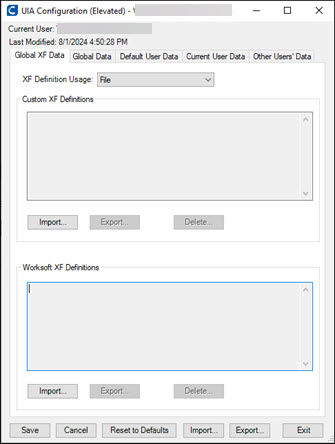
Click the Global XF Data tab.
The Global XF Data tab opens.
-
From the XF Definition Usage drop-down list, select which set of XF definitions you will use with the UIA interface:
XF Definitions Option
Description
CustomAndWorksoft
Only use this option if directed to do so by Worksoft.
This option uses the combination of definitions in the Custom XF and Worksoft XF Definitions sections of the Global XF Data tab. If a definition with a given name appears in both sections, the one listed in the Custom XF Definitions is used.
Custom
This option uses only the definitions in the Custom XF Definitions section. If custom XF definitions are required, the entire collection of default definitions must first be imported into the Custom XF Definitions section.
These definitions are stored in the Certify database, and all Certify installations using the same database will use these definitions.
Worksoft
Only use this option if directed to do so by Worksoft.
This option uses only the definitions in the Worksoft XF Definitions section.
File
This option uses only the default XF definitions in the xfdefinitions.xml file, which is located in the following UIA interface installation folder:
C:\Program Files (x86)\Worksoft\Certify\Interface Client\Worksoft\wsTest\UIA
The content of this file may change when updating to later versions of the UIA interface.
Custom XF definitions must not be added to this file because they are only available to this specific Certify installation user. All custom definitions are lost if the UIA interface is updated to a later version.
None
Only use this option if directed to do so by Worksoft. It is only useful for investigating UIA issues.
You should select Custom or File.
-
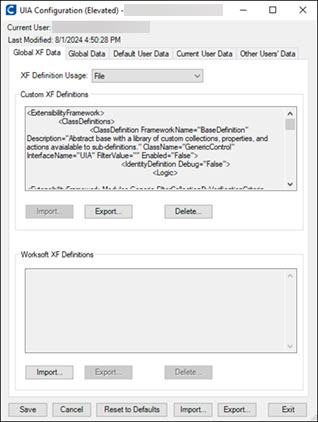
Click the Import button in the Custom XF Definitions section and select the default xfdefinitions.xml file in the Choose Custom XF Definitions File to Import dialog.
The file is located in the following UIA interface installation folder:
C:\Program Files (x86)\Worksoft\Certify\Interface Client\Worksoft\wsTest\UIA
-
Click Open.
The selected XF Definitions appear in the Custom XF Definitions section.
-
Click Save.
Replace
-
Y
o Change the XF Definition Usage to Custom so that the UIA interface will use these definitions.
o The Import button is enabled only when the Custom XF Definitions collection is empty. To replace existing Custom XF Definitions with a new collection, first Export the current collection as a backup. Then Delete the existing definitions. The Import button should now be enabled and can be used to import a new collection.
• Export – Export the existing Custom collection to a file. Pressing this button opens a dialog for saving the definitions to a file. The Export button is enabled only when the Custom collection is not empty.
• Delete – Delete the existing definitions. The Delete button is enabled only when the Custom collection is not empty.
 Related Topics