Enabling Application Presets to Self-Heal
When you create application presets, you can configure them to recover from a failed resolution by setting them to self-heal. If the interface can not resolve and identify a window and object, it will use the self-healing algorithm to find them.
An attribute string must contain self-healing data for the attempt to be successful. Self-healing data is not present in existing map objects in Certify. New learned objects through Business Capture, LiveTouch, and Edit Object will capture self-healing data. When configuring HTML recognition attributes, specify data that can be used as self-healing when learning new objects.
Additionally, you must configure the Confidence Threshold option for self-healing.
To enable application presets to self-heal:
- Sign in to Certify.
-
From the Certify menu, select Configure > Web > Options.
The Certify Web Interface Options tool opens.
-
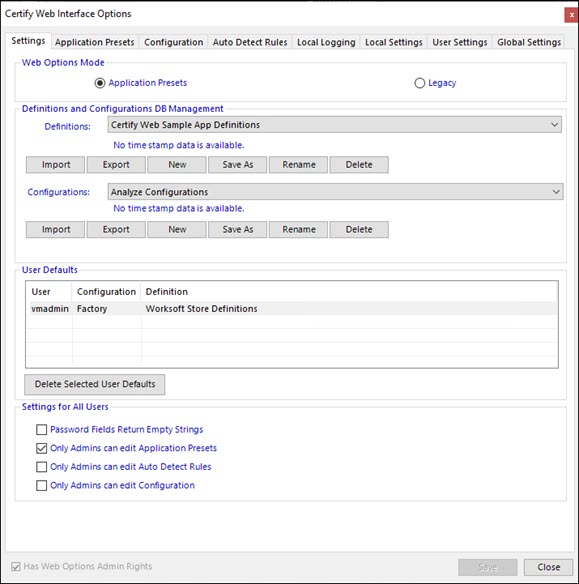
In the Settings tab, select the Application Presets option in the Web Options Mode section.
-
Click Save.
-
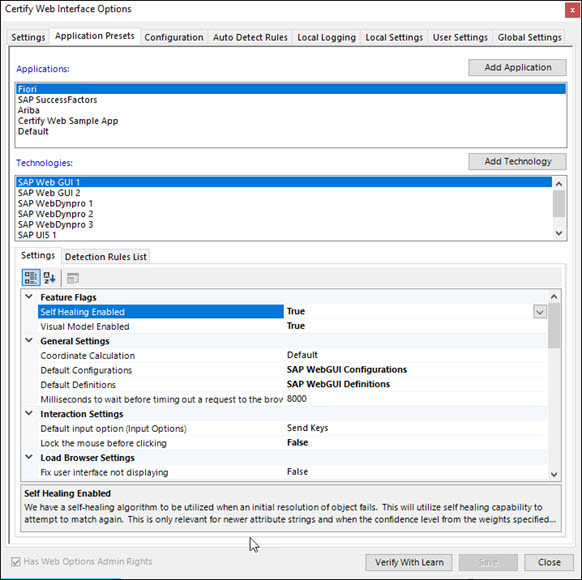
Click the Application Presets tab.
The Application Presets tab opens.
-
In the Settings tab, select True from the Self Healing drop-down list in the Feature Flags section.
-
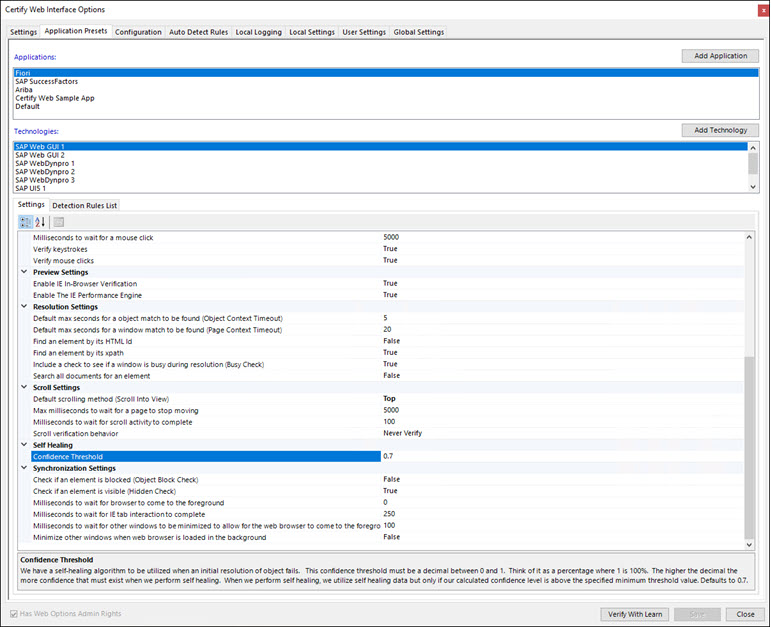
Scroll down the tab until you see the Self Healing section.
-
In the Confidence Threshold field, enter the confidence threshold in decimals between 0 and 1.
The default value is 0.7.
The higher the decimal, the greater the confidence required to perform self-healing.
-
If you want to test the new application, click Verify with Learn.
Certify Web Learn opens, and you can test the application.
-
Click Save to save your new application.
To enable application presets to self-heal in Legacy Mode:
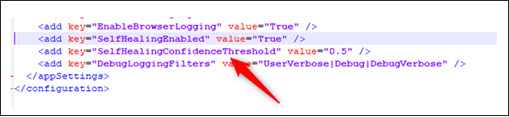
If you are using Legacy mode, you must enable the feature flag for the self-heal option by updating your configuration file–Worksoft.Interfaces.HTML.dll.config. The configuration file is user-specific on each machine.
To navigate to the configuration file, enter %appdata%\worksoft\HTML in the File Explorer.
-
Open the Worksoft.Interfaces.HTML.dll.config file in Notepad.
-
Enter the following information in the configuration file:
<add key="SelfHealingEnabled" value="True" />
<add key="SelfHealingConfidenceThreshold" value="value" />
-
Save the updated configuration file.
None of your existing objects will have self-healing data in them unless you use Edit Object to edit the object. All new objects that are added to processes by Business Capture or LiveTouch will automatically have self-healing data.
To view self-healing information in Certify:
When reviewing a Certify result in the Results Viewer, you can view the self-healing details in the Parameters tab.
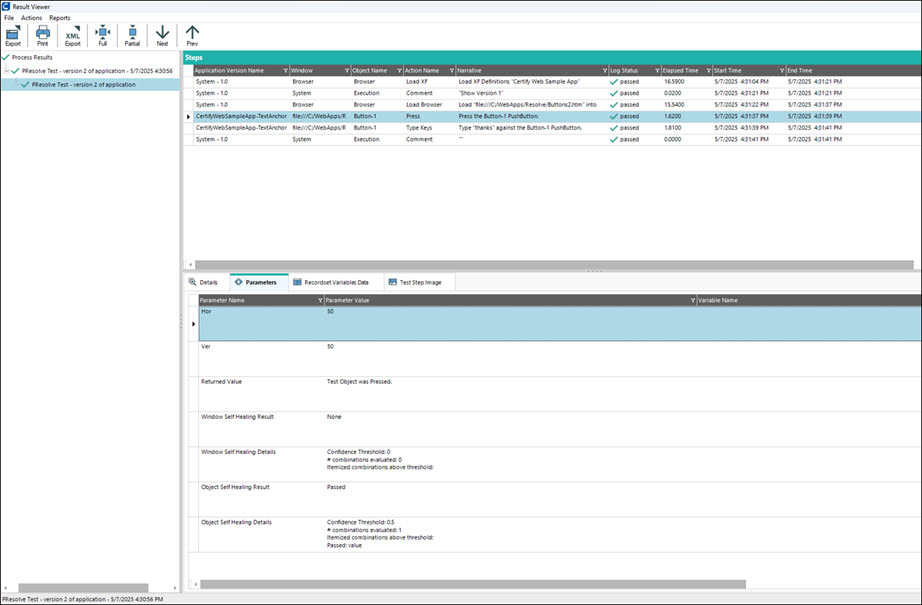
Even if self-healing is performed, it is still possible for the step to fail. When a step fails, you can gain insight into making changes to the process, attribute string, or configuration by understanding why the step may have failed and how it was successful as a result of the self-healing information.
When a step passes due to self-healing, review the self-healing information reported to ensure that it identifies the correct object in the browser. If the Confidence Threshold is too low, the self-healing algorithm can interact with an incorrect object in the browser. By reviewing the self-healing reported information, determine if changes need to be made to the threshold.
 Related Topics