Configuring Application Presets with the Certify Web Interface Options Tool
In the Certify Web Interface Options tool, Certify administrators can create an application with presets that specify a set of technologies. These presets are used to match a web application with the specified technology in order to access runtime settings and XF Definitions and Configurations files.
To create an application with presets:
- Log on to Certify.
-
From the Certify menu, select Configure > Web > Options.
The Certify Web Interface Options tool opens.
-
Click the Application Presets tab.
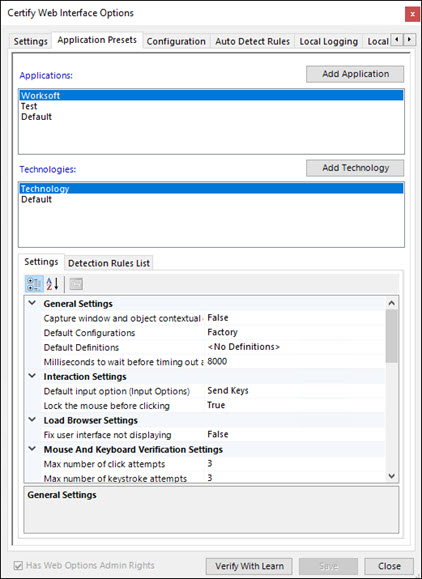
The Application Presets tab opens.
-
Click Create.
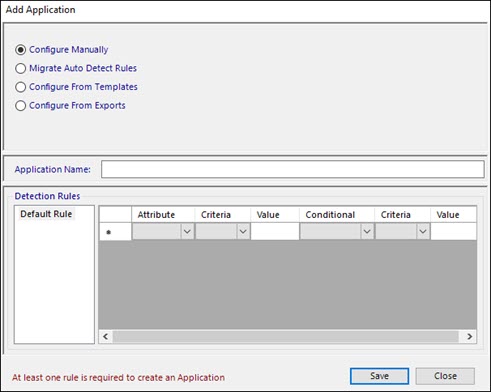
The Create Application dialog box opens.
-
In the Application Name field, enter the name for you new application.
-
In the Detection Rules grid, create at least one unique rule from the following drop-down lists:
- Attribute
- Criteria
- Value
- Conditional
- Criteria
-
Value
These rules automatically specify which web definitions and configurations files that should be used.
-
After you have completed creating your rules, click Save to save your application.
The new application name appears in the Application Name field.
Next, you will add technology to the application. A Default technology is automatically added to each defined application in order to set runtime settings. The Default technology can not be modified.
-
Click Add Technologies.
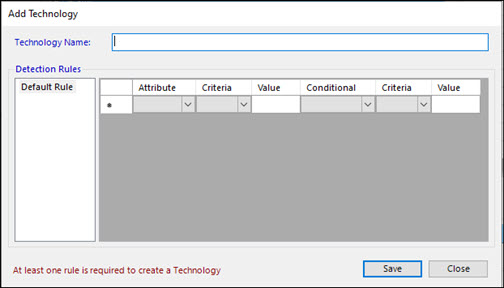
The Add Technology dialog box opens.
-
In the Technology Name field, enter a name for your technology.
-
In the Detection Rules grid, create at least one unique rule from the following drop-down lists:
- Attribute
- Criteria
- Value
- Conditional
- Criteria
-
Value
Attributes are used to match technology to a web page.
-
After you have completed creating your rules, click Save.
The new technology name appears in the Technologies field.
-
In the Settings tab, accept the default settings or edit the values by clicking on a row and apply the changes.
When you click on a row, a description for the value appears in the Description pane.
-
Click the Detection Rules tab to view the rules that you created.
-
If you need to edit the rules, click on the value and edit the value.
You can not edit or delete the detection rules associated with the Default technology.
-
Click Save to save your new application.
The new changes are saved to your Certify database, and they are cached on the local file system.
To delete application presets:
Only Certify administrators can delete an application preset.
- From the Application drop-down list in the Application Presets tab, select the application preset that you want to delete.
-
Click the Delete button.
A message asks if you want to delete the application preset.
-
Click Yes.
The application preset is deleted.
 Related Topics