Importing Users Into the Worksoft Portal
Administrators, tenant administrators, and superusers can import users by uploading a CSV file that contains user names and email addresses.
The CVS file format should include the following information:
- Username
- Email address
- First name
- Last name
- Tenant(s)
The format consists of a user name followed by the email address, first name, and last name, and a comma between each item. After the last name, add a pipe symbol followed by tenant names that are separated by commas.
Example:
jsmith, jsmith@worksoft.com, joan, smith | WSPM, JSTenant
If a user already exists, but new tenants are listed in the file, the additional tenants are added to the existing user.
The file can not contain superusers and more than one provider.
To import users into the Worksoft Portal:
-
Sign in to the Worksoft Portal as an administrator.
-
From the Worksoft Portal menu, select Portal Configuration > User Administration.
The User Administration page opens.
-
Click Import Users.
The Import Users dialog opens.
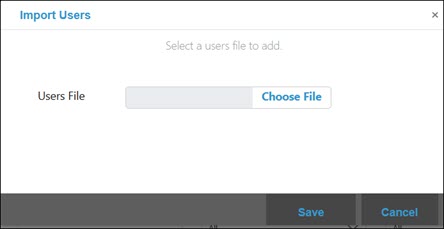
- Click Choose File.
- Browse to the directory where your file is saved.
-
Click Open.
The selected file appears in the Users File field.
-
Click Save.
The new users appear in the User Administration page.
After successfully importing users, new users will receive instructions by email.
 Related Topics