Configuring an SAP Connection in the Worksoft Portal
Superusers and tenant administrators can add SAP connections in the Worksoft Portal. Superusers can add, edit, and delete connections from any tenant, and tenant administrators can add, edit, and delete connections in their own tenancy.
You can configure the SAP Connection by selecting one of the following options:
- Group/Server Selection
- Custom Application Server
- Use Connection String
This topic shows how to configure each connection.
To configure an SAP connection with the Group/Server Selection option:
-
Sign in to the Worksoft Portal as an administrator or superuser.
-
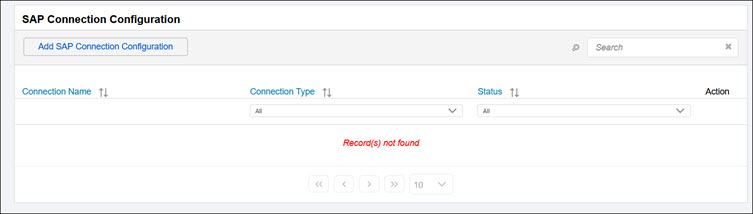
From the Worksoft Portal menu, select Portal Configuration > SAP Configuration.
The SAP Connection page opens.
-
Click the Add SAP Connection Configuration button.
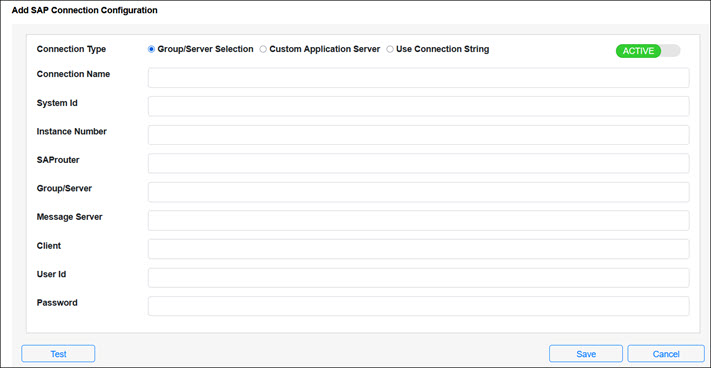
The Add SAP Connection Configuration page opens.
-
If not selected, select the Group/Server Selection option.
-
To enable or disable the SAP Connection Configuration, use the Active toggle button.
-
Enter the following information:
Field
Description
Connection Name
Enter a name for your SAP connection.
Connection names can only have alphanumeric and space values.
System Id
Enter the three- character System ID identifier for the specific SAP system.
Instance Number
(Optional) Enter the two-digit instance number identifier. Only numbers are accepted.
SAP Router
(Optional) Enter the SAP router that provides secure network connections.
Group/Server
Enter the group/server name you intend to use.
Message Server
Enter the message server name you intend to use.
Client
Enter the SAP client you intend to use.
User Id
Enter the SAP user ID.
Password
Enter the SAP password.
-
Click Test.
A message opens stating if the connection works.
-
Click Save.
A message opens stating your connection configuration is saved.
-
Click OK.
The SAP Connection appears in the SAP Connection page.
To configure an SAP connection with the Custom Application Server option:
-
Sign in to the Worksoft Portal as an administrator or superuser.
-
From the Worksoft Portal menu, select Portal Configuration > SAP Configuration.
The SAP Connection page opens.
-
Click the Add SAP Connection Configuration button.
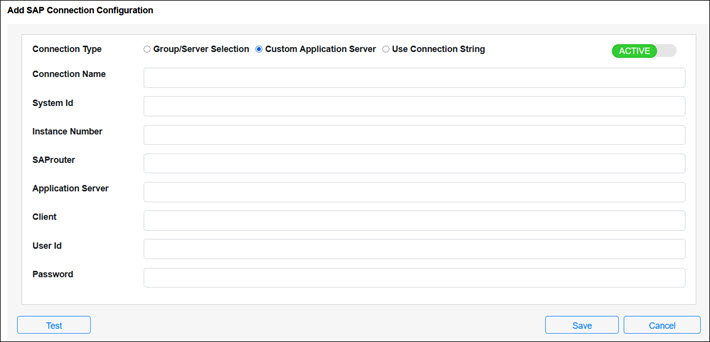
The Add SAP Connection Configuration page opens.
-
Select the Custom Application Server option.
-
To enable or disable the SAP Connection Configuration, use the Active toggle button.
-
Enter the following information:
Field
Description
Connection Name
Enter a name for your SAP connection.
Connection names can only have alphanumeric and space values.
System Id
Enter the three- character System ID identifier for the specific SAP system.
Instance Number
Enter the two-digit instance number identifier. Only numbers are accepted.
SAP Router
(Optional) Enter the SAP router that provides secure network connections.
Application Server
Enter the SAP application server.
Client
Enter the SAP client you intend to use.
User Id
Enter the SAP user ID.
Password
Enter the SAP password.
-
Click Test.
A message opens stating if the connection works.
-
Click Save.
A message opens stating your connection configuration is saved.
-
Click OK.
The SAP Connection appears in the SAP Connection page.
To configure an SAP connection with the Use Connection String option:
-
Sign in to the Worksoft Portal as an administrator or superuser.
-
From the Worksoft Portal menu, select Portal Configuration > SAP Configuration.
The SAP Connection page opens.
-
Click the Add SAP Connection Configuration button.
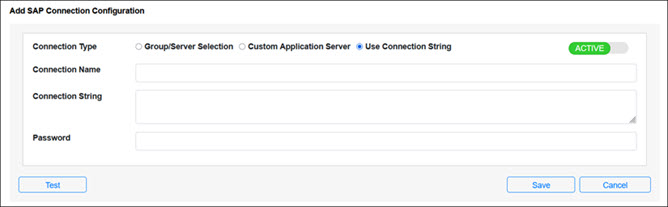
The Add SAP Connection Configuration page opens.
-
Select the Use Connection String option.
-
To enable or disable the SAP Connection Configuration, use the Active toggle button.
-
Enter the following information:
Field
Description
Connection Name
Enter a name for your SAP connection.
Connection names can only have alphanumeric and space values.
Connection String
Enter the connection string.
Password
Enter the SAP password.
-
Click Test.
A message opens stating if the connection works.
-
Click Save.
A message opens stating your connection configuration is saved.
-
Click OK.
The SAP Connection appears in the SAP Connection page.
 Related Topics