Capturing Processes with Business Capture for Mac
After Worksoft Business Capture for Mac starts, all interactions within the SAP GUI for Java application are captured. These processes can be imported into other Worksoft products for document generation, automated business process discovery, and testing acceleration.
Be careful when entering confidential information because all interactions are retained while Business Capture is in Capture mode.
This topic shows you how to complete the following tasks:
- Access Business Capture
- Configure Business Capture settings
- Capture a process
- Save a Capture
- Delete a Capture
Accessing Business Capture for Mac
After Worksoft Business Capture for Mac is installed, the Worksoft Mac Capture  icon appears on your Dock. Click the Worksoft Mac Capture icon to open the tool.
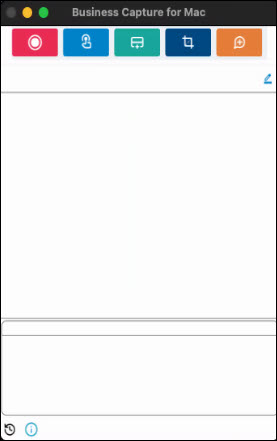
Configuring Settings
Before you begin capturing your processes, you must complete the following tasks:
- Configure the interface options settings.
- Configure you Business Capture settings.
To configure the interface options settings:
-
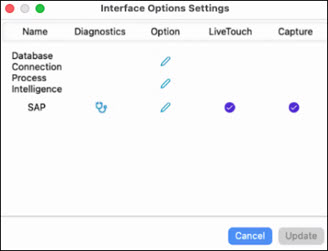
From the Business Capture menu bar, select Configure > Interface Options.
The Interface Options Settings dialog opens.
-
Verify the Capture and LiveTouch options are selected for the SAP interface.
-
If these options are not selected, select them and click Update.
If these options are already selected, click Cancel.
For information about connecting to a Certify database, see Connecting to a Certify Database in Business Capture for Mac.
To configure Business Capture settings:
-
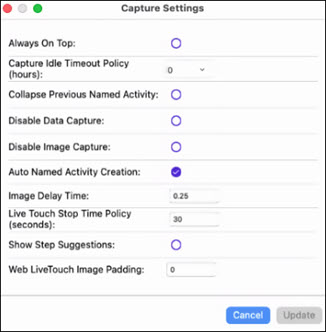
From the Business Capture menu bar, select Configure > Capture Settings.
The Capture Settings dialog opens.
-
Configure the following options:
Option
Description
Always on Top
Select this option to keep Worksoft Capture on top of all windows on the screen.
Capture Idle Timeout Policy (hours)
Set the amount in hours before Worksoft Business Capture shuts down. When Business Capture shuts down, the license can be used by another user.
The default value is 0 which means it never times out. Select one of the following values:
- 0
- .5 (30 minutes)
- 1
- 2
- 4
- 8
- 16
- 24
The timer starts when there is no mouse movement.
Collapse Previous Named Activity
Select this option if you want to collapse the last Named Activity step automatically. If you select this option, Business Capture automatically collapses the previous Named Activity step when creating a new Named Activity step.
Disable Data Capture
Select this option to remove the data from captured steps.
Disable Image Capture
Select this option to disable taking screen images.
This option is a good choice if you have applications with sensitive information.
Image Delay Time
Enter the amount of delay in seconds when taking a screen image.
The default value is .25 seconds.
LiveTouch Stop Time Policy (seconds)
Set a stop time policy for LiveTouch in seconds. When you stop LiveTouch, interfaces need time to respond and provide an update.
Default time is 30 seconds.
Show Step Suggestions
Select this option to show step suggestions.
Web LiveTouch Image Padding
Enter the amount of additional pixels around the LiveTouch object screen image. The default value is 0 pixels.
-
Click Update to close the Configuration dialog.
Capturing Processes
After you have configured Business Capture, you are now ready to begin capturing processes.
To capture processes with Business Capture for Mac:
-
Open the SAP GUI for Java application where you want to capture the steps of the process.
-
Click the Capture
 button in Business Capture.
After you click the button, the button changes to Capture mode
 .
. -
Begin creating your business process workflow.
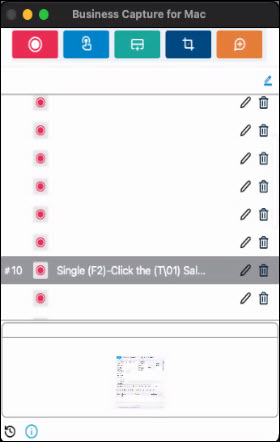
-
If you need to pause during this process, click the Capture button, and Capture button goes into Stop Capture mode.
-
If you need to delete a step, click the Delete Step
 icon next to the step.
 - After you complete your process, click the Stop Capture button to end Capture mode.
To save a Capture:
- From the menu bar, select File > Save to Local File.
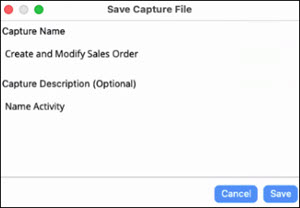
- In the Capture Name field, edit the Capture file name if needed.
- (Optional) In the Capture Description field, enter a description.
- (Optional) In the Name Activity field, enter a name for an activity.
-
Click Save.
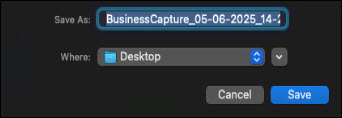
The Save As dialog opens.
-
From the Where drop-down list, select where you want to save your file.
-
Click Save.
The Capture is saved as an XML file.
The Save Capture File dialog opens.
To delete a Capture:
-
If you do not want to save the Capture, select File > New Capture from the menu bar.
A message opens asking if you want to discard the current Capture.
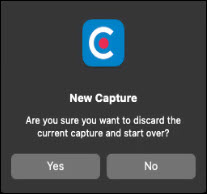
- Click Yes to discard the Capture.
 Related Topics