Viewing the Keyboard Shortcuts List in Business Capture
Within Business Capture, you are able to use keyboard shortcuts as an alternate way to do something that you typically would do with a mouse.
To view the Certify Keyboard Shortcuts list:
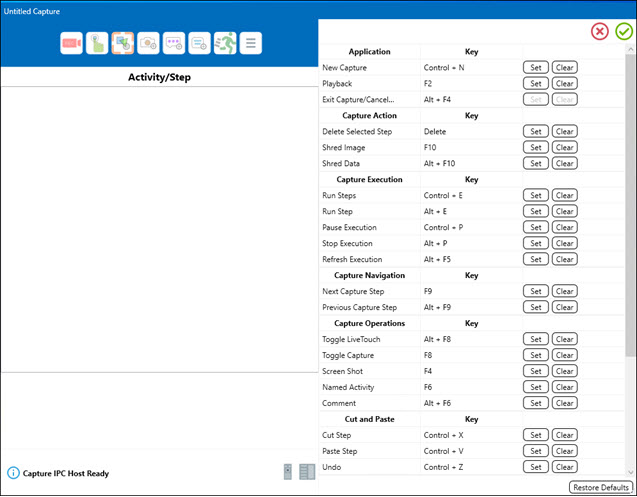
Click the Main Menu  button and select Settings > Hot Keys.
The Keyboard Shortcuts dialog box opens.
To customize keyboard shortcuts:
To customize a keyboard shortcut, click Set next to the application and press the combination of keys that you want to assign.
Examples: <Ctrl> + <A> or <Shift> + <B>
The updated combination of keys appear next to the application.
To restore defaults, click Restore Defaults.
 Related Topics