Assigning a Worksoft Capture File to a Business Process
After you have uploaded a Worksoft Capture, you need to assign the Capture to an existing business process or a newly created business process.
To assign a Capture file to an existing business process:
-
From the left Process Intelligence Navigation pane, click Data Management.
The Data Management page opens.
-
Click the Captures tab.
The Captures tab opens.
-
Click the Capture Options
 button next to the Capture you want to assign to a business process.
The Capture Options drop-down menu appears.
-
Select Assign to Business Process.
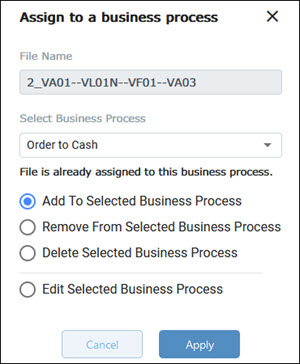
The Assign Capture to a Business Process dialog box opens.
-
In the Business Process drop-down list, select a business process.
-
Click Assign.
The Captures tab opens, and the business process is listed next to the Capture.
To assign a Capture file to a new business process:
-
From the left Process Intelligence Navigation pane, click Data Management.
The Data Management page opens.
-
Click the Captures tab.
The Captures tab opens.
-
Click the Capture Options
button next to the Capture you want to assign to a business process.The Capture Options drop-down menu appears.
-
Select Assign to Business Process.
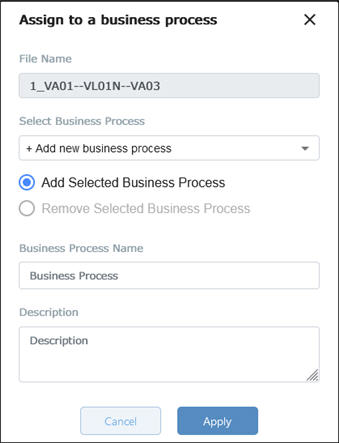
The Assign Capture to a Business Process dialog box opens.
-
In the Business Process drop-down list, select Add a New Business Process.
The Business Process Name field appears.
-
In the Business Process Name field, enter a name for your process.
-
Click Assign.
The Capture tab opens, and the business process is listed next to the Capture.
 Related Topics