Configuring Azure DevOps in the Integration Gateway
Worksoft Certify integrates with Azure DevOps to synchronize Certify and Azure DevOps folders and test cases. You can synchronize from Certify to Azure DevOps, from Azure DevOps to Certify, or bi-directionally.
Before you proceed with the configuration, verify that you have all of the required prerequisites. For more information, see Worksoft Certify Integration with Azure DevOps and Getting Started with Certify and Azure DevOps Integration.
Accessing the Worksoft Integration Gateway
Listed below is the URL address for the Worksoft Integration Gateway:
https://<portalservername>/Integration
Example: https://servername.worksoft.com/Integration
If you have any questions about your specific URL address, ask your IT administrator.
To configure Azure DevOps:
-
Sign in to the Worksoft Integration Gateway as a user that is assigned to the tenant for the integration.
-
Click the Create Integration drop-down list and select Azure DevOps Integration.
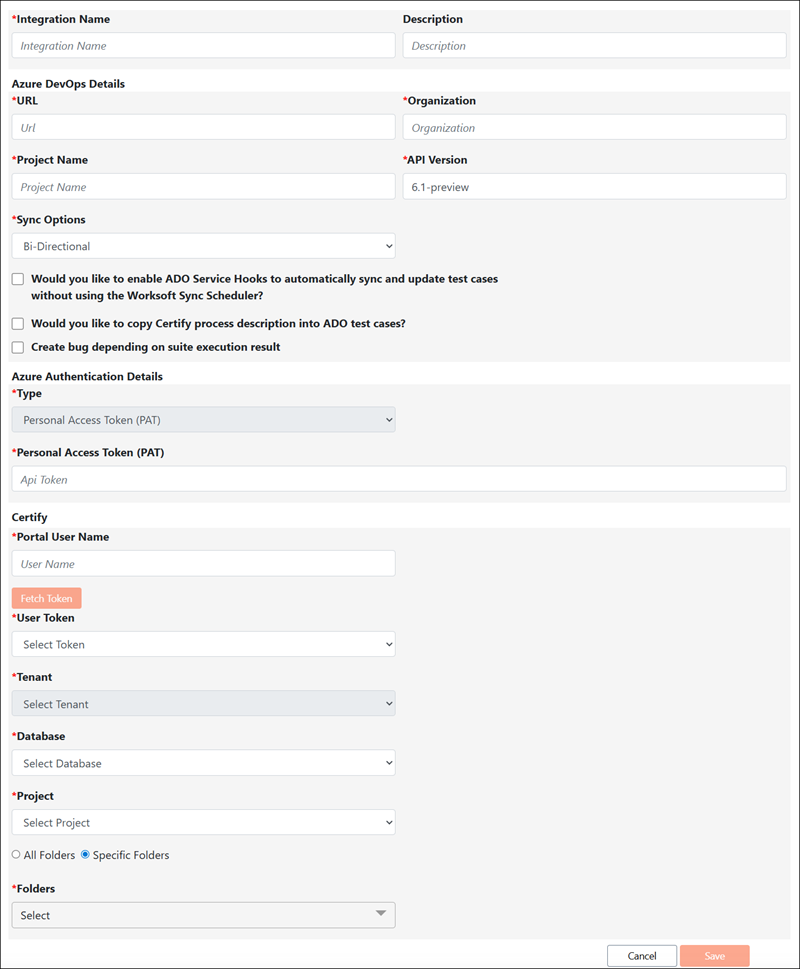
The Azure DevOps Integration page opens.
-
In the Integration Name field, enter a name for your integration.
-
(Optional) In the Description field, enter a description.
-
In the Azure DevOps Details section, enter the following information for your Azure DevOps configuration:
- URL
- Organization
- Project Name
- API Version
-
Under Sync Options, select how you want to synchronize data between Azure DevOps and Certify:
- ADO to Certify
- Certify to ADO
- Bi-Directional
- (Optional) Select one or more of the following options:
-
Would you like to enable ADO Service Hooks to automatically sync and update test cases without using the Worksoft Sync Scheduler?
If you select this option, new and edited Azure DevOps test cases are automatically synchronized to Certify.
The synchronization does not create and execute test suites. To automatically create and execute test suites, use the Worksoft Scheduler. For more information, see Synchronizing Data Between Certify and Azure DevOps in the Integration Gateway.
-
Would you like to copy Certify process description into ADO test cases?
If you select this option, the Certify process descriptions are copied to Azure DevOps during the initial synchronization. Any subsequent changes to the descriptions are not synchronized.
-
Create bug depending on suite execution result.
If you select this option, a defect is automatically created when a test case fails.
-
In the Personal Access Token (PAT) field, provide your PAT from Azure DevOps.
-
In the Certify section, enter a Worksoft Portal username in the Portal User Name field.
The user must be assigned to the tenant for the integration.
-
Click Fetch Token to retrieve a list of API tokens for the Worksoft Portal user.
If you previously added tokens in the Worksoft Portal, the system displays a message that it successfully retrieved them.
-
Click OK.
-
From the User Token drop-down list, select a token.
-
From the Tenant drop-down list, select the tenant for the integration.
-
From the Database drop-down list, select the database for the integration.
-
From the Project drop-down list, select the project to synchronize.
-
If you want to synchronize all folders within the selected project, select All Folders.
If you want to synchronize a subset of folders, select Specific Folders and then select the folders from the Folders drop-down list.
Folder names cannot contain any of the of the following characters: \ / : * ? " < > | # $ & * +
-
Click Save.
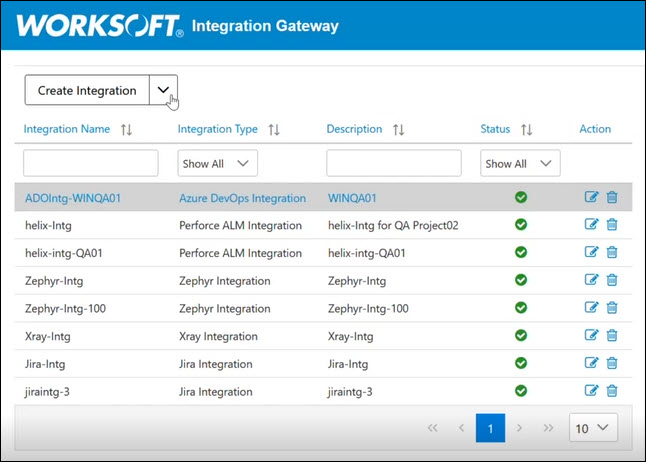
The Azure DevOps integration appears in the list on the Integration Gateway page.
To edit the Azure DevOps connection:
If you need to edit the Azure DevOps connection, click the Edit  button next to the connection you want to edit.
To delete an Azure DevOps connection:
If you need to delete the Azure DevOps connection, click the Delete  button next to the connection you want to delete.
 Related Topics